
 Stops
How to save a place from Safari, Google Maps or any app
The bakery from a blog, the bar a friend sent you, the viewpoint on someone’s map. Wherever you find a place, you can get it into Stops in a couple of taps.
- Free
- A few seconds
- iPhone and iPad
Step by step
-
Share it to Stops
In Apple Maps, Google Maps, Safari or any app, tap the Share button and choose Stops. You can also choose Save to Stops from the actions below the apps.
-
Check the name and save
Stops finds the place from the link, address, coordinates or name it was given, and fills in its name and category. Pick another match under Did You Mean if needed, then tap Save.
-
Or just copy the link
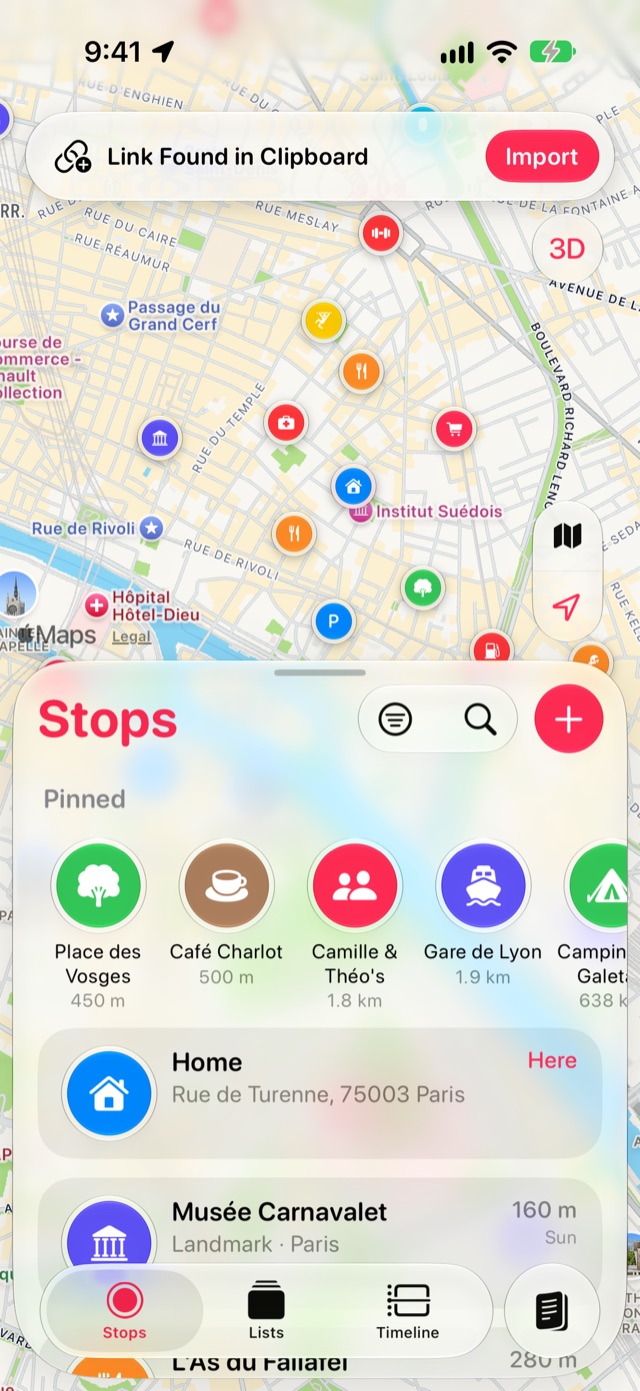
Copy a Maps link anywhere, then open Stops. A Link Found in Clipboard banner appears over the map: tap Import.
Good to know
- Share an article that names several places, such as “the best bakeries in Paris”, and on devices with Apple Intelligence they arrive together as a new list.
- Sharing an Apple Maps guide imports every place in it; see importing an Apple Maps guide.
More guides
Apple Maps guidesTurn a guide you made in Apple Maps into a list of stops.Google Maps saved placesBring your starred and saved places across from Google Maps with Google Takeout.GPX filesBring in waypoints from hiking, cycling and GPS apps as stops.
Get Stops
Save the places you’ll come back to, on iPhone, iPad, Mac and Apple Watch.
