
 Stops
How to import a GPX file into Stops
Most hiking, cycling and GPS apps can export GPX, and so can Stops. The waypoints in a GPX file become stops, with their names, notes and dates.
- Free
- About 2 minutes
- iPhone and iPad
What you need
- A GPX file saved in the Files app, in iCloud Drive or on your iPhone.
Step by step
-
Save the GPX file to Files
Export the GPX from the app or website it comes from and save it to Files. Waypoints are what Stops imports; a file that only has a route brings in the route’s points instead.
-
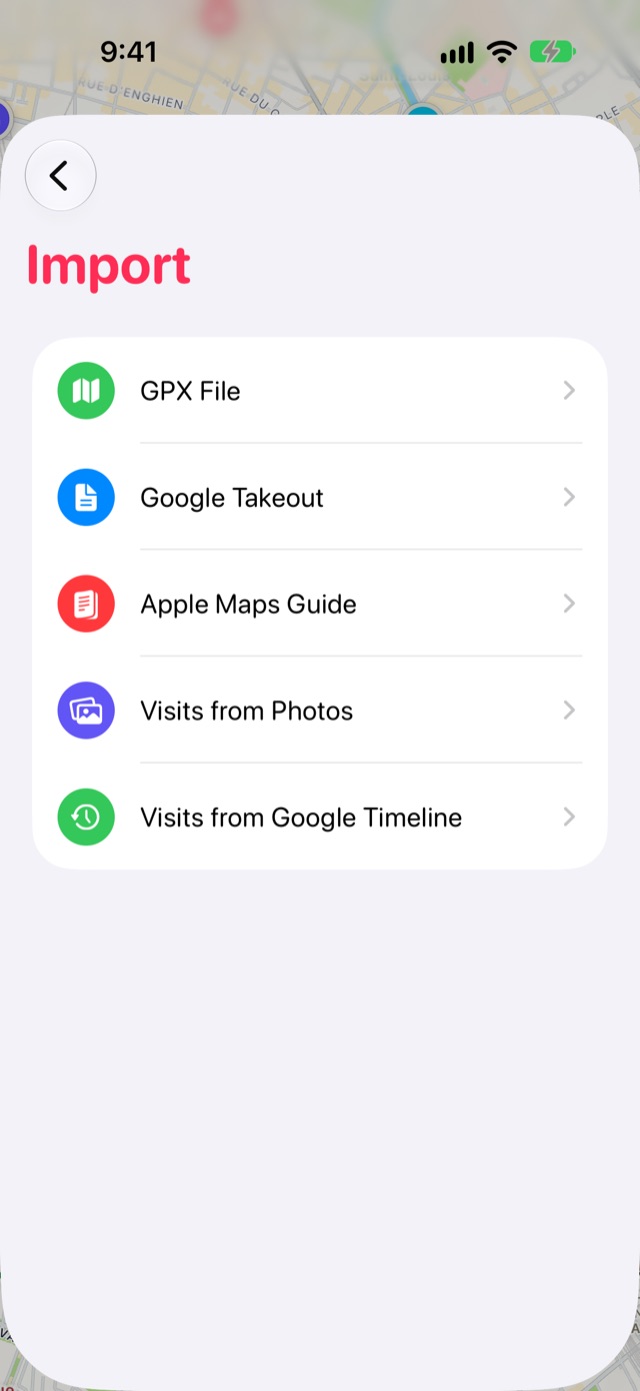
Open Import in Stops
Open Journal from the book button at the end of the tab bar, then tap the Settings gear. Choose Import, then GPX File, and pick the file.
-
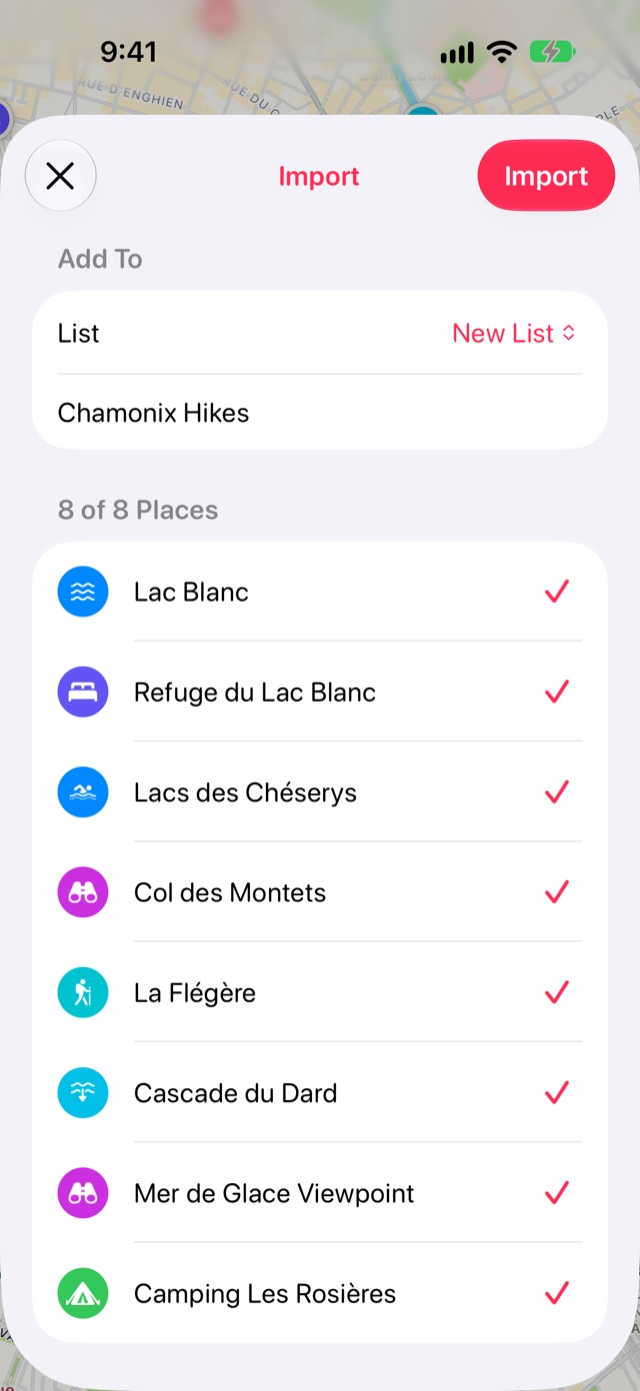
Check the places and import them
The list is named after the file. Untick anything you don’t want and tap Import.
Good to know
- A waypoint’s type becomes its category when it matches one of Stops’ categories, such as Viewpoint, Camping or Waterfall. A GPX exported from Stops comes back exactly as it left.
- Recorded tracks are left out: Stops keeps places, not paths.
- Stops exports KML for Google Earth and My Maps, but imports GPX only.
More guides
Export your placesTake your stops, lists and Timeline anywhere as GPX, KML or CSV.Google Maps saved placesBring your starred and saved places across from Google Maps with Google Takeout.Apple Maps guidesTurn a guide you made in Apple Maps into a list of stops.
Get Stops
Save the places you’ll come back to, on iPhone, iPad, Mac and Apple Watch.
