
 Stops
How to import an Apple Maps guide into Stops
A guide you made in Apple Maps can come into Stops whole. Every place in it becomes a stop, in a new list named after the guide.
- Free
- About 2 minutes
- iPhone and iPad
What you need
- A guide you made yourself in Apple Maps. Guides by Apple Maps’ editors, such as those in Guides We Love, only share a link to themselves and can’t be imported.
Step by step
-
Share the guide from Apple Maps
In Maps, open Your Guides, tap the guide, then tap the Share button.
-
Send it to Stops
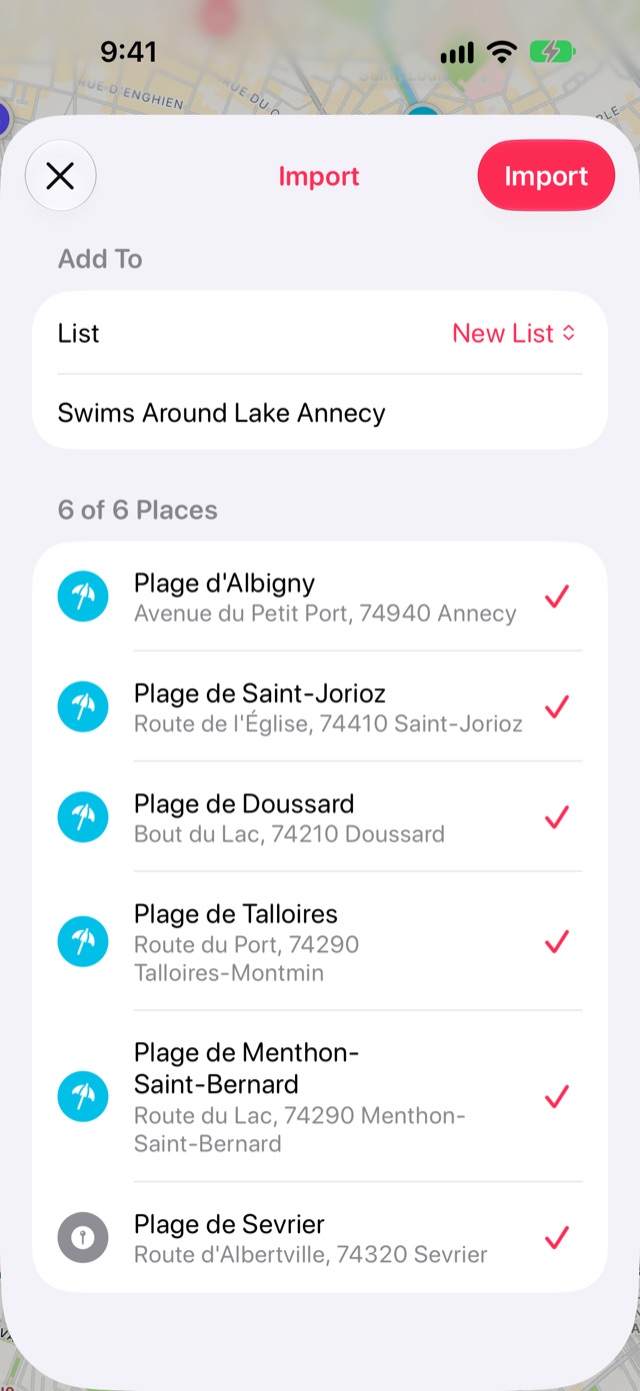
In the share sheet, tap Stops. Stops lists the guide’s places, named after the guide, ready to save.
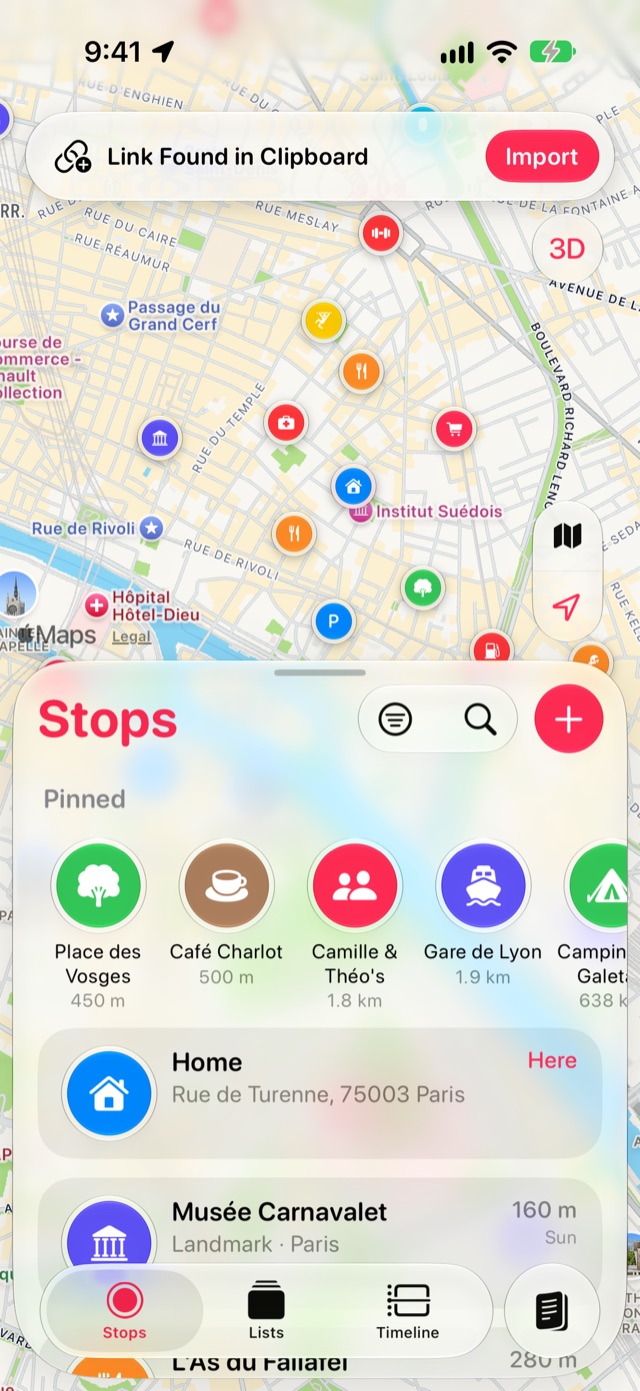
Or tap Copy and open Stops: a Link Found in Clipboard banner appears over the map. Tap Import.
-
Or paste the link into Import
If you have the guide’s link in a message or a note, open Journal from the book button at the end of the tab bar, then tap the Settings gear. Choose Import, then Apple Maps Guide, and paste it.
-
Check the places and import them
Untick any places you don’t want, keep New List or choose one of yours, and tap Import. The list opens on the map.
Good to know
- Short links such as maps.apple links are followed to the guide they lead to.
- Importing is free. The guide is read on your device; only the places it names are looked up in Apple Maps.
More guides
Get Stops
Save the places you’ll come back to, on iPhone, iPad, Mac and Apple Watch.
