
 Stops
How to import your Google Maps saved places into Stops
Google Maps has no export button for your saved places, but Google Takeout can give you a copy of them as a file. Stops reads that file and keeps each place’s name, address, note and the date you saved it.
- Free
- About 10 minutes
- iPhone and iPad
What you need
- The Google account you use in Google Maps.
- Stops on your iPhone or iPad.
Step by step
-
Ask Google Takeout for your places
Go to takeout.google.com and sign in. Choose Deselect all, then tick Maps (your places) only. Leave its format as JSON.
Don’t pick the separate Maps or Saved entries: they hold other things, and the Saved lists come without positions.
-
Create the export
Choose Next step, keep Export once, and choose Create export. Google emails you a download link, usually within a few minutes.
-
Save the file on your iPhone
Download the zip from Google’s email and open it in the Files app to unpack it. Inside Takeout › Maps (your places) you’ll find Saved Places.json. The name follows your Google language, so it may be called something else, such as Gespeicherte Orte.json.
If you use labels in Google Maps, there may also be Labeled places.json. Stops reads that one too.
-
Open Import in Stops
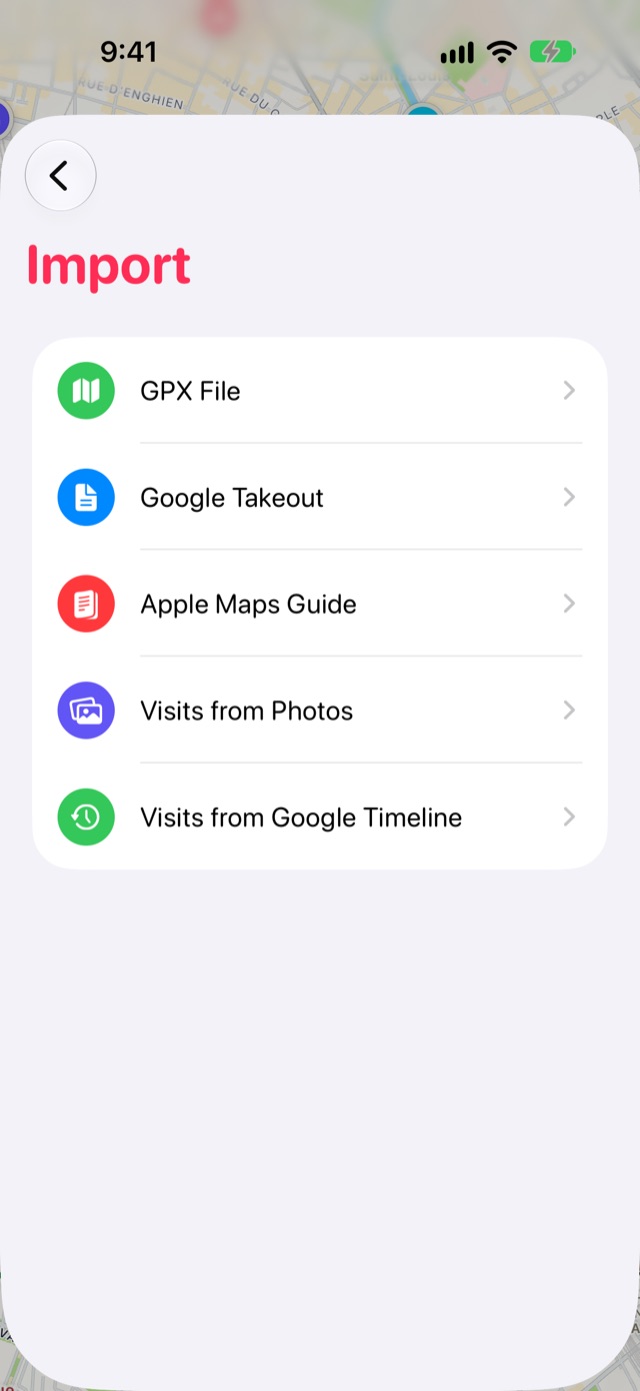
Open Journal from the book button at the end of the tab bar, then tap the Settings gear. Choose Import, then Google Takeout, and pick Saved Places.json.
-
Check the places and import them
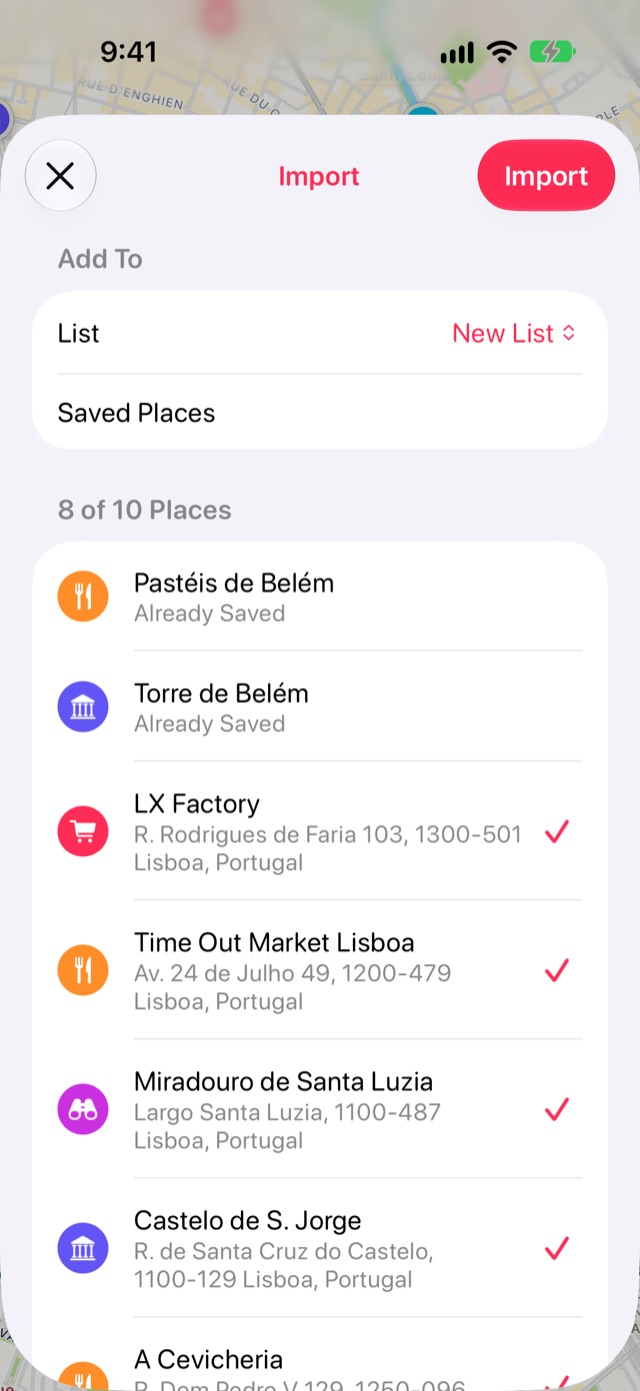
Stops shows every place it found before anything is saved. Untick any you don’t want. Places you already have are marked Already Saved and are left out.
Under Add To, keep New List to put them in a list of their own, or pick one of your lists. Then tap Import.
Good to know
- Recent Takeout files often leave out where a place is. Stops then finds it in Apple Maps by its name and address, which takes a moment for a long file.
- Stops gives each place a category where it can tell, so a bakery arrives as Food and a beach as Beach.
- Importing is free, and nothing leaves your device except the Apple Maps lookups.
More guides
Get Stops
Save the places you’ll come back to, on iPhone, iPad, Mac and Apple Watch.
