
 Stops
How to export your places and Timeline from Stops
Everything you keep in Stops is yours to take with you. Export it whenever you like, to a GPS app, a spreadsheet, Google Earth or a friend’s Stops.
- Free
- A few seconds
- iPhone and iPad
Step by step
-
Export everything
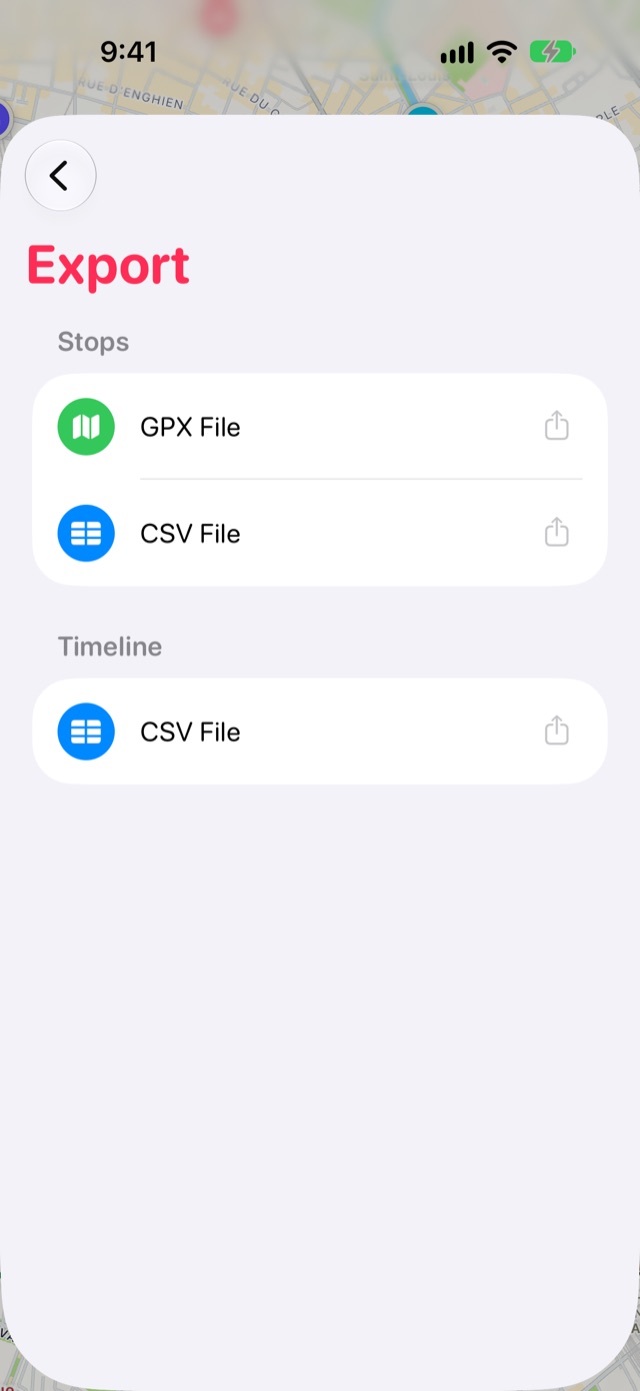
Open Journal from the book button at the end of the tab bar, then tap the Settings gear, then choose Export.
- Stops › GPX File for maps and GPS apps.
- Stops › CSV File for a spreadsheet.
- Timeline › CSV File for every visit with its times and place.
Tap one and save or send the file from the share sheet.
-
Export a single list
In Lists, touch and hold a list and choose Export. Pick GPX, KML for Google Earth and Google My Maps, or a Stops file that opens in someone else’s Stops with the list’s look and days.
Good to know
- Exports are made on your device. Nothing is sent anywhere unless you send it.
More guides
GPX filesBring in waypoints from hiking, cycling and GPS apps as stops.Google Maps saved placesBring your starred and saved places across from Google Maps with Google Takeout.Google Maps TimelineFill in years of past visits from your Google Maps Timeline export.
Get Stops
Save the places you’ll come back to, on iPhone, iPad, Mac and Apple Watch.
