
 Stops
How to find your saved places along a drive
Maps get you there. Stops reminds you what’s on the way: the campsite you saved last summer, the viewpoint worth a cup of tea, the bakery near the motorway exit. Pick where you’re going and your saved places along the road appear in the order you’ll reach them.
- Free
- A few seconds
- iPhone and iPad
What you need
- Location access for Stops, so it knows where the drive starts.
Step by step
-
Open where you’re going
Tap a stop, Home, Work or any place on the map to open its card. Then tap Stops on the Way. It appears for anywhere more than a short hop from where you are.
-
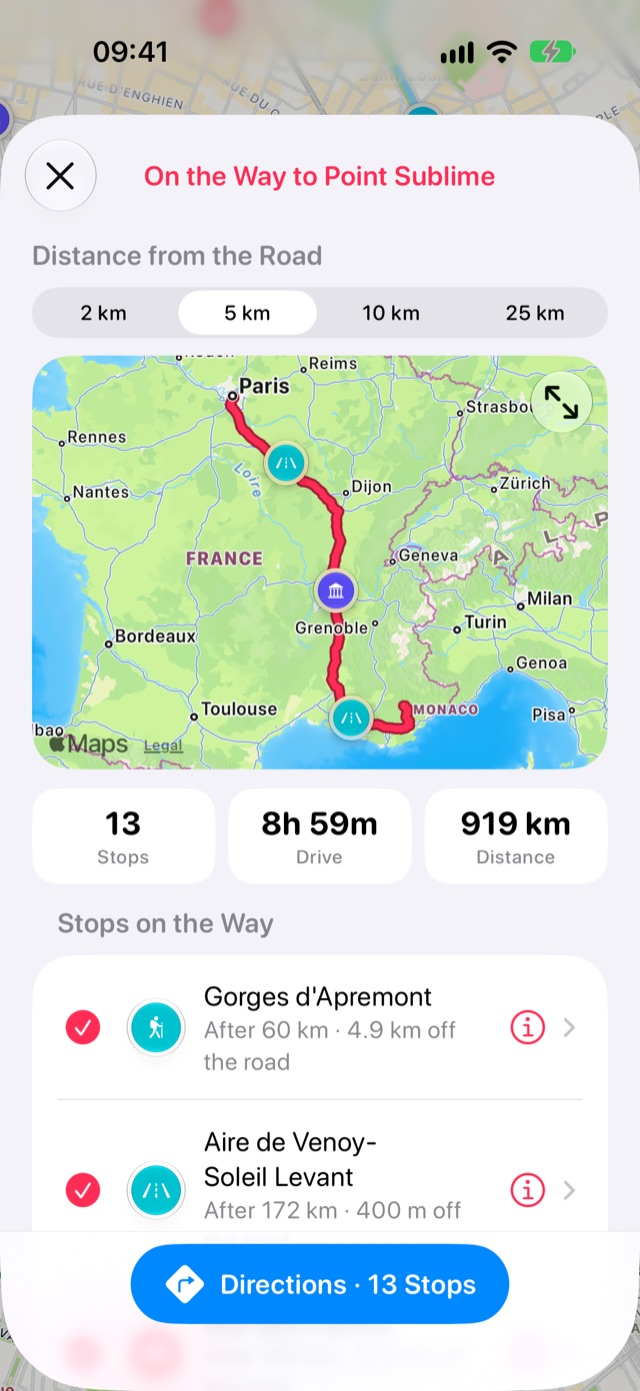
See what’s along the road
Stops works out the drive and lists your saved places near it, first to last. Each one says how far into the drive it comes and how far off the road it is.
Tap the map to see it full size.
-
Look closer or further
At the top of the page, under Distance from the Road, tap how far to look, from 2 to 25 km. The map and the list change straight away, and Stops remembers your choice for next time.
-
Get directions through the stops you want
Every stop is ticked to start with. Tap any you’d rather skip, and tap it again to bring it back. The info button opens a stop.
Tap Directions and your maps app opens with directions through the ticked stops, in driving order, to where you’re going. Apple Maps and Google Maps take stops on the way; Google Maps takes up to nine.
Good to know
- Places right around where you start are left out, so a long drive out of a city doesn’t begin with the city’s own stops.
- The route comes from Apple Maps, so this needs a connection.
More guides
Get Stops
Save the places you’ll come back to, on iPhone, iPad, Mac and Apple Watch.
